
SQL Server Management Studio (SSMS)
SQL Server Management Studio (SSMS) is the main administration console for SQL Server.
SSMS enables you to create database objects (such as databases, tables, views etc), view the data within your database, you can configure user accounts, transfer data between databases, and more.
Here's what SQL Server Management Studio looks like when you first open it up:
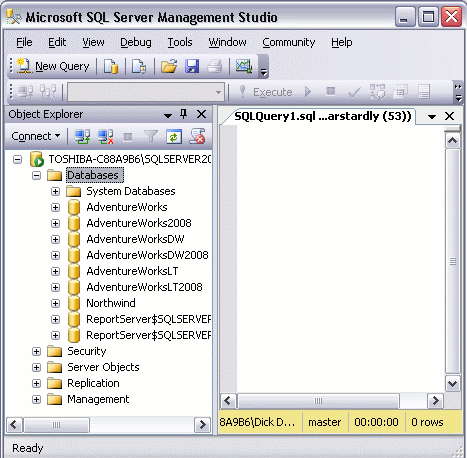
The left pane contains the Object Explorer. The Object Explorer provides navigation to databases, server objects (such as triggers), log files, and more.
The right pane allows you to write queries against the database and view the results. In this screenshot I have opened a blank query by clicking the "New Query" button. You can also bring up other windows, such as the Properties window.
Note that I have minimized the size of the window for this screenshot. Once maximized, you have much more room to play with.
You can use SQL Server Management Studio to create as many databases as you like. You can also connect to as many databases on as many servers as you like.
Most of the tasks performed with SQL Server Management Studio are initiated either from the top menu, or by right-clicking on an icon/object.
Throughout most of this tutorial, we'll be looking at the various things you can do via SQL Server Management Studio.